Chat
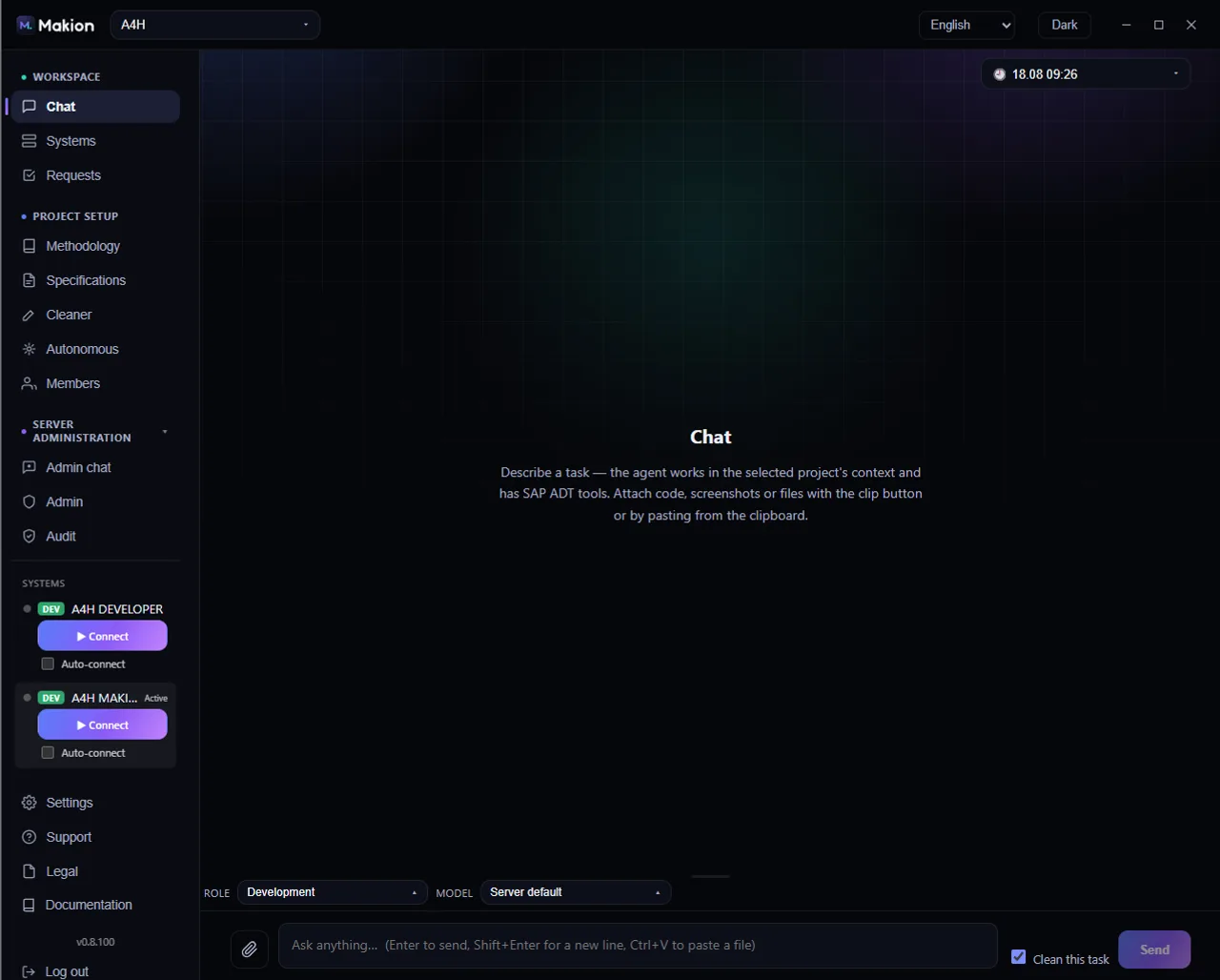
Chat is where you do the work. You describe a task in plain language, pick a role that scopes what the agent may do, and the agent carries it out against the SAP system your project points at. Chat is the default surface, and its state survives navigation — switch to another tab and back, and your conversation is still there.
Before your first message, connect to a system in the Systems tab and pick the role that fits the work. Read-only roles can investigate but physically cannot change SAP.
The chat bar#
The bar across the top of Chat manages your conversations.
| Control | Where | What it does | When it appears |
|---|---|---|---|
| Chat switcher | Top left of the chat bar | A dropdown (clock icon + the conversation's creation-time label, e.g. 14.07 14:12). Lists recent conversations; each row shows its time and message count (N 💬). |
Always |
| + New chat | Top row of the Chat switcher dropdown | Starts a fresh, empty conversation. | Always (inside the dropdown) |
| Clear | Right of the chat bar | Clears the current conversation. | Only when the conversation has messages |
The message area#
The message area is the transcript of your conversation.
- Empty state — before you send anything, you see the heading Chat and guidance to describe a task.
- Assistant messages render as Markdown, with full ABAP syntax highlighting in code blocks.
- Streaming — while the agent is composing a reply, a
…placeholder shows before text arrives. - User attachments appear as chips on your own messages.
- Live status line — during a run, a status line shows what the agent is doing.
The composer#
The composer is the input area at the bottom of Chat, where you set the run's scope and type your task.
Tools row#
The row above the text box sets how the run behaves.
| Control | Where | What it does | When it appears |
|---|---|---|---|
| Role selector | Left of the tools row | Dropdown of roles, grouped under Development / Consulting / Support headers. Each option shows a label and a short description; read-only roles carry a · read-only suffix. Defaults to Development. See How roles work. |
Always. Disabled while a run is busy |
| Model selector | Tools row | Custom dropdown of AI models; the top option is Server default. | Always, but disabled unless you are a superadmin, and disabled while a run is busy |
Attachments bar#
Staged files appear here as chips before you send. Each chip has a × to remove it.
Input and send#
| Control | Where | What it does | When it appears |
|---|---|---|---|
| Grip handle | Top edge of the composer | Drag to resize the input area. | Always |
| Attach file | Paperclip button, composer | Opens a file picker to stage an attachment. | Always |
| Textarea | Center of the composer | Type your task. Placeholder: Ask anything… (Enter to send, Shift+Enter for a new line, Ctrl+V to paste a file). Supports drag-and-drop and clipboard paste; large pasted text becomes a .txt chip. |
Always |
| Clean this task checkbox | Composer | Runs the ABAP cleaner before writing or activating, for this task only. | Only when the project's cleaner master switch is ON |
| Send | Bottom right of the composer | Sends your message and starts the run. Becomes ■ Stop while a run is in flight — click it to stop; stopped runs are labeled Stopped. | Always |
You can send a file three ways: the Attach file paperclip, drag-and-drop onto the composer, or Ctrl+V paste. Pasting a large block of text stages it as a .txt chip instead of flooding the input.
Sending a task#
- Pick a Role that matches the work — a read-only role to investigate, a write role to change SAP.
- (Optional) Stage any files the agent needs, and tick Clean this task if you want the cleaner to run.
- Type your request and press Enter (or click Send).
- Watch the live status line and streaming reply. Click ■ Stop at any time to halt the run.
A write role changes SAP during the conversation you are directing. If you want a hard human-approve-and-apply gate on every write, use Autonomous mode instead. The full picture is in the Security model.
ABAP syntax highlighting#
Fenced code blocks render with a custom ABAP / CDS / RAP grammar. The recognized languages are abap, cds, ddl, and bdef. Every block has a header bar showing the language label and a copy button.
A special ⚠️ MANUAL STEPS IN SAP block from the agent renders as a distinct highlighted callout. It lists steps you must perform by hand in SAP — the manual handoff the agent cannot do for you.
Related pages#
- Systems & SAP connections — pick and connect the SAP system this chat targets.
- How roles work — what each role can and cannot do.
- ABAP cleaner — what Clean this task runs.
- Settings — theme, license, updates, and server URL.
- Security model — how read-only and write access are enforced.