Systems & SAP connections
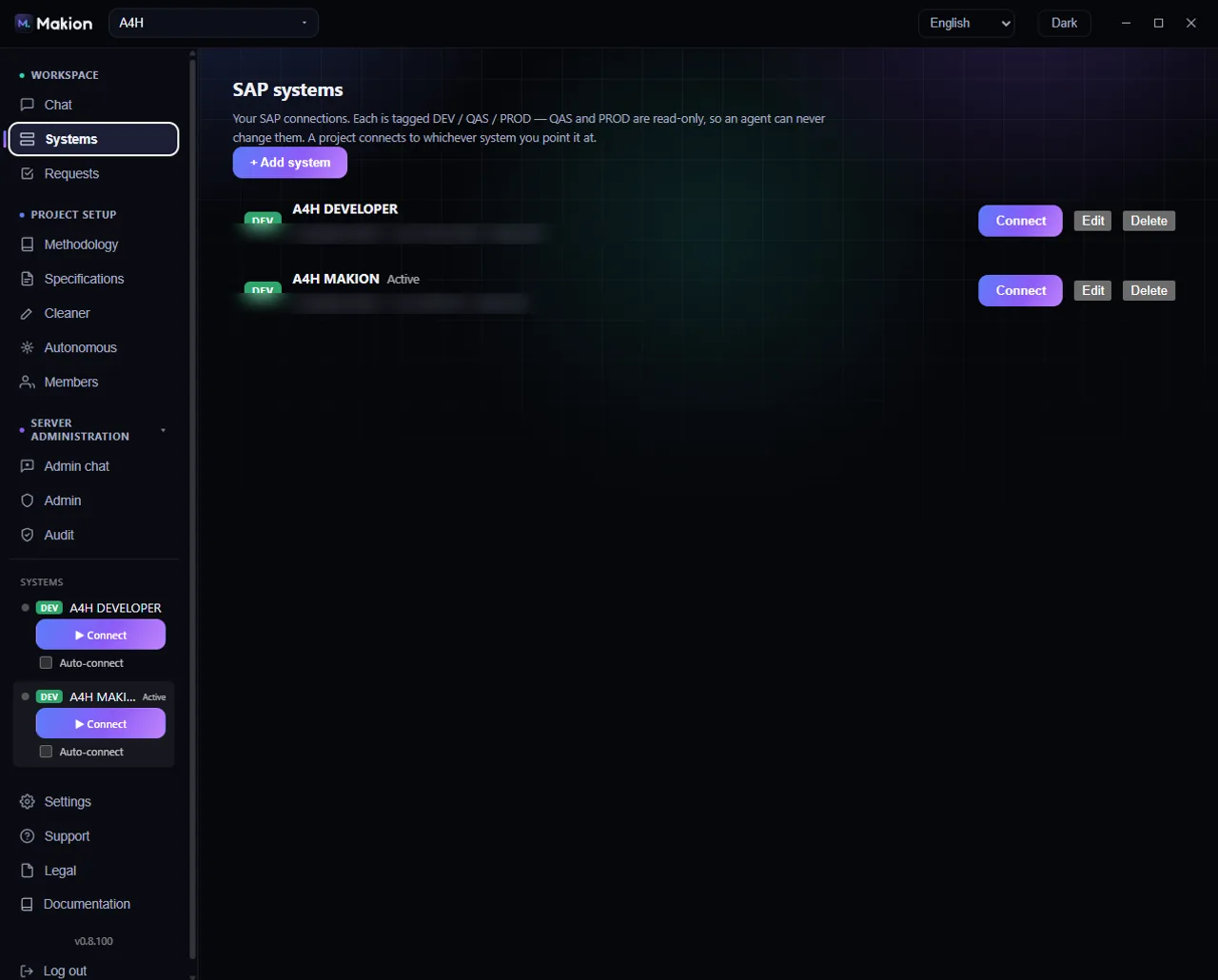
The Systems tab holds your SAP connections. Each connection is tagged with a tier — DEV, QAS, or PROD — and QAS and PROD are read-only, so an agent can never change them. A project connects to whichever system you point it at, and you can have several systems connected at once while one is the active Chat target.
Two states that look alike but aren't#
A system has two independent states, and it matters that they are separate:
- Active — this system is the current Chat target. Only one system is Active at a time.
- Connected · {user} — a live tunnel to SAP is open, shown with a colored dot.
A system can be Active but not Connected (it is the chosen target, but no tunnel is open yet), or Connected but not Active (a tunnel is open, but a different system is the chat target). Several systems can be Connected at once.
Top of the tab#
| Control | Where | What it does | When it appears |
|---|---|---|---|
| + Add system | Top of the Systems tab | Opens the add form for a new SAP connection. | Always |
| Import current connection card | Top of the tab | One-click import of an existing connection into a new system. | Once, only when there are no systems yet but a legacy connector config URL exists |
| Empty state | Center of the tab | Reads No systems yet — add your first SAP connection. |
When you have no systems |
The system row#
Each saved system is one row.
| Element | What it shows |
|---|---|
| Tier badge | DEV (green), QAS (amber), or PROD (red). |
| System name | The name you gave the connection. |
| Active tag | Shown when this system is the current chat target. |
| ● Connected · {user} | Shown when a live tunnel is open, with the connected SAP user. |
| Subtext | url · User · Client, plus read-only for non-DEV tiers. |
Row buttons:
| Control | What it does | When it appears |
|---|---|---|
| Connect | Opens the tunnel. Shows Connecting… then Connected. |
Always |
| Use | Makes this system the active chat target. | When the system is live (connected) but not active |
| Edit | Opens the edit form for this system. | Always |
| Delete | Removes the system (confirm: Delete this system?). |
Always |
Add / Edit form#
| Field | Example / notes |
|---|---|
| Name | e.g. A4H / S4P |
| URL | e.g. https://vhcala4hci:50001 |
| User | e.g. DEVELOPER |
| Client | e.g. 100 |
| Password | Write-only. When editing, shows (saved — leave empty to keep). Encrypted with Windows DPAPI, user-scoped — never stored in plaintext. |
| Tier | Select: DEV, QAS — read-only, or PROD — read-only. |
| Skip TLS verification (self-signed cert) | Checkbox — allow a self-signed certificate. |
| Auto-connect | Checkbox — connect this system automatically at startup. |
| Save / Cancel | Save the connection, or discard changes. |
The password is encrypted with Windows DPAPI and scoped to your user account. It is never stored in plaintext and never leaves your machine.
SidebarSystems widget#
The sidebar carries a compact copy of your systems at the bottom, so you can connect and switch targets without leaving Chat.
| Control | What it does |
|---|---|
| Status dot | Tier color when live, amber while connecting, grey when off. |
| Tier badge + name | Which system this row is. |
| Active tag | Shown when this system is the chat target. |
| ▶ Connect / ■ Disconnect | Open or close the tunnel. |
| Connected · {user} | The live tunnel and its SAP user. |
| Use | Make this system the active chat target. |
| Auto-connect checkbox | Connect this system automatically at startup. |
Several systems can be connected at once; one is the active chat target. At startup, Makion auto-connects the systems you flagged — once per project.
The environment-change confirmation#
When connecting or re-tagging a system would change its read-only guarantee, a safety dialog fires before anything happens. It shows the System, Host, Client, and Target, and requires you to type the exact <TIER> <system name> string to confirm; wrong text — or cancel — aborts the action. See Security model for why this matters.
Never downgrade a PROD system to a writable tier to "get work done faster." The read-only tag on QAS and PROD is the guarantee that an agent can never change those systems.
Related pages#
- Chat — the working surface that targets the active system.
- Settings — the SAP connection note now points here; older SAP fields moved to this tab.
- Security model — how read-only tiers are enforced.
- How roles work — the other half of what an agent may do.